 COME
COMECOME Home-Screen Icon or Installed App: Web Pages and Native Apps
Identify what a home-screen item opens before choosing its update, permission or account route. You can open a COME product page on a computer and want to understand what that says about phone installation.
The icon is only the starting clue
A home-screen item can launch an Android application, reopen a website or open a web app in an app-like window. All can use similar artwork. An icon named COME is therefore insufficient to decide how the software was obtained or which settings govern it.
Open the item once and observe the surface. Look for a browser address bar and inspect the device's application information when the distinction matters. Some web apps have a more self-contained presentation, so the absence of an obvious address bar should not be your only evidence. Retain the installation history and the route used to create the item.
Separate the creation routes
Adding a webpage shortcut stores a way to reopen that page. A native Android installation uses a package and Android's installer. A browser-supported web-app installation follows the browser's own offered route. These are general platform distinctions, not a claim that every COME page supports every option.
If the item was created immediately after saving a webpage, do not report that event as a completed APK installation unless the actual package and installer steps occurred. Conversely, a browser opening when you follow an external link from an installed app does not mean the original app disappeared. Describe each transition rather than judging the entire setup from one screen.
Choose the appropriate update and permission controls
Browser site permissions and Android application permissions are different controls. A web page asking for access uses the browser's site context; an installed application can have its own device permissions. Read the requester and purpose on the actual prompt before making a choice.
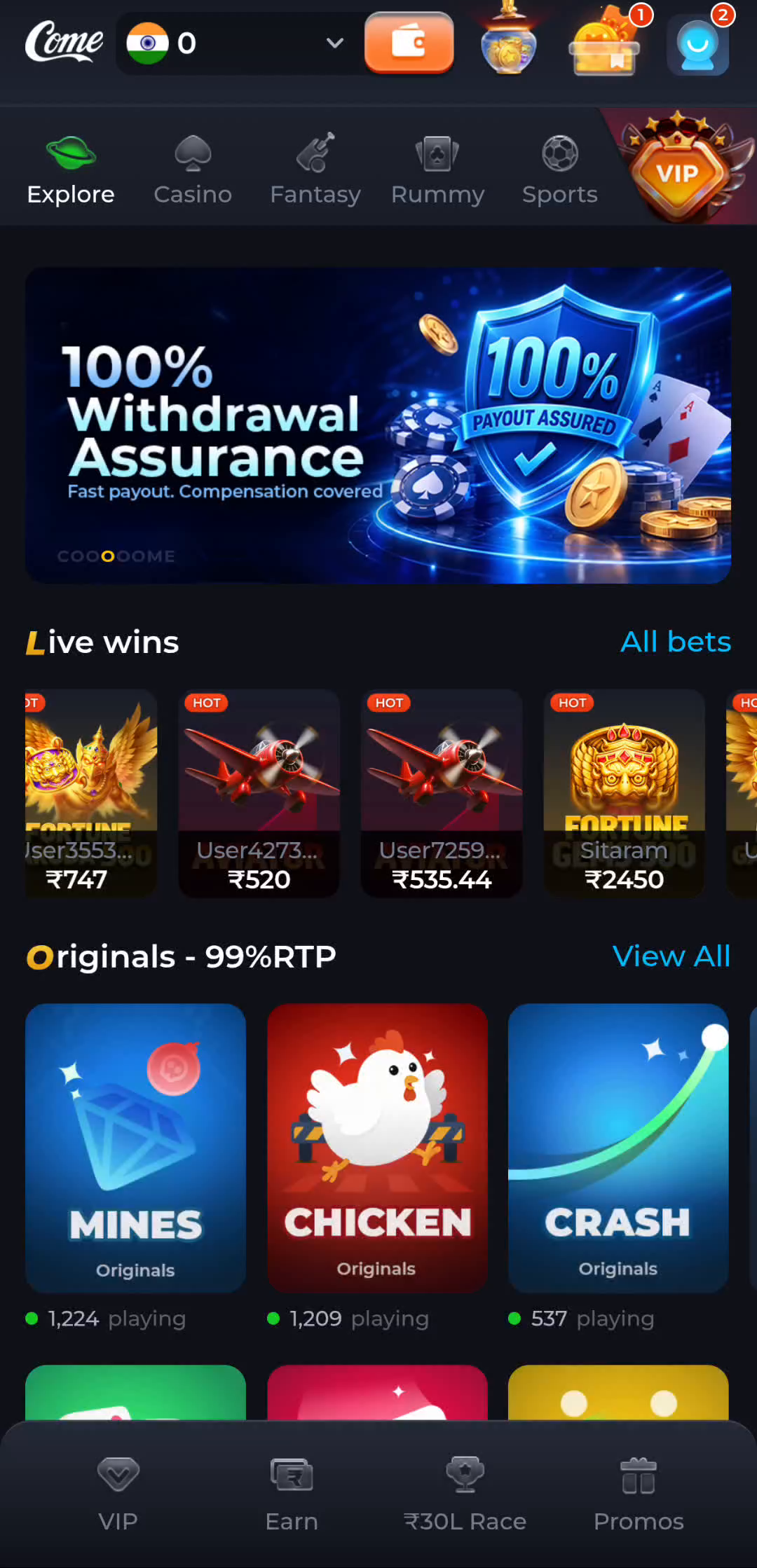
For updates, use the route appropriate to the installed object and the product's actual release information. The COME interface illustrated in these guides includes Check Update in Settings, but a pictured label does not confirm what is installed on your phone. Record the observed result of the control without assuming it replaces every browser or operating-system update.
Keep account and storage questions separate
Two entry methods can show different account states. Identify the intended account before comparing history. Deleting an icon, clearing browser data and uninstalling an Android app are different actions with different consequences; none should be used casually to discover which surface you have.
The task is complete when you can describe how the home-screen item was created, what it opens and which settings apply to it. If the evidence remains mixed, preserve the working setup and collect the exact app-information or browser details needed for support. Do not add another copy merely to make the icon count look right.
Apply this check to your visit
You can open a COME product page on a computer and want to understand what that says about phone installation.
A successful webpage request establishes browser access to that page at that moment. It does not confirm a Windows, macOS or iOS app, and an Android APK cannot be installed directly as one of those native formats. Treat web navigation, account access and device distribution as separate questions.
The checkpoint for this guide is specific: identify what a home-screen item opens before choosing its update, permission or account route.
Questions about this task
Can two icons with the same logo open different things?
Yes. Their appearance does not identify the creation route or account context. Inspect what each actually opens.
Should I delete an icon to test whether it is an app?
No. Identify it through its behaviour and device information first; deletion is a different action.
A related next step
Identify the surface you opened and choose the correct route for navigation, installation, updates and account access. You can open a COME product page on a computer and want to understand what that says about phone installation.